Documentation Index
Fetch the complete documentation index at: https://docs.cloud.vessl.ai/llms.txt
Use this file to discover all available pages before exploring further.
This quickstart covers org-wide admin setup. If you haven’t created your account yet, start with the Member quickstart first.
Select your organization
Log in to cloud.vessl.ai. Click your organization name in the top navigation bar to open the dropdown, then select the organization you want to manage.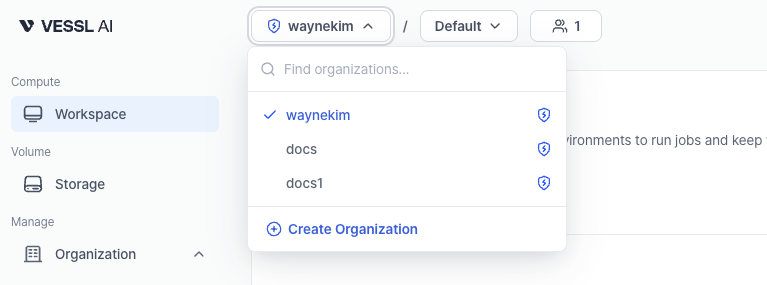
Select your team
Next to the organization dropdown, click the team selector to choose which team’s resources you want to view. You can switch teams anytime to manage different workspaces and volumes.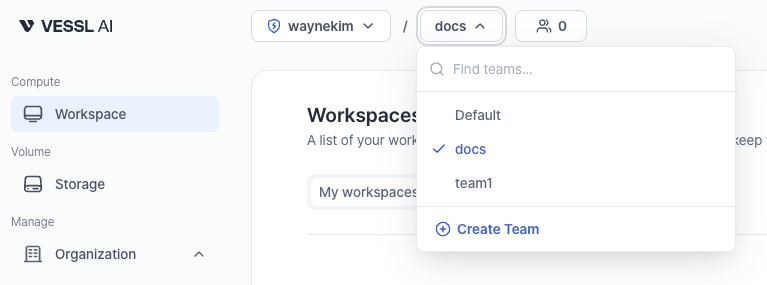
View organization storage
Navigate to Manage > Organization > Storage in the sidebar to see all Cluster storage and Object storage volumes across your organization. You can check each volume’s cluster, capacity, and team assignments at a glance.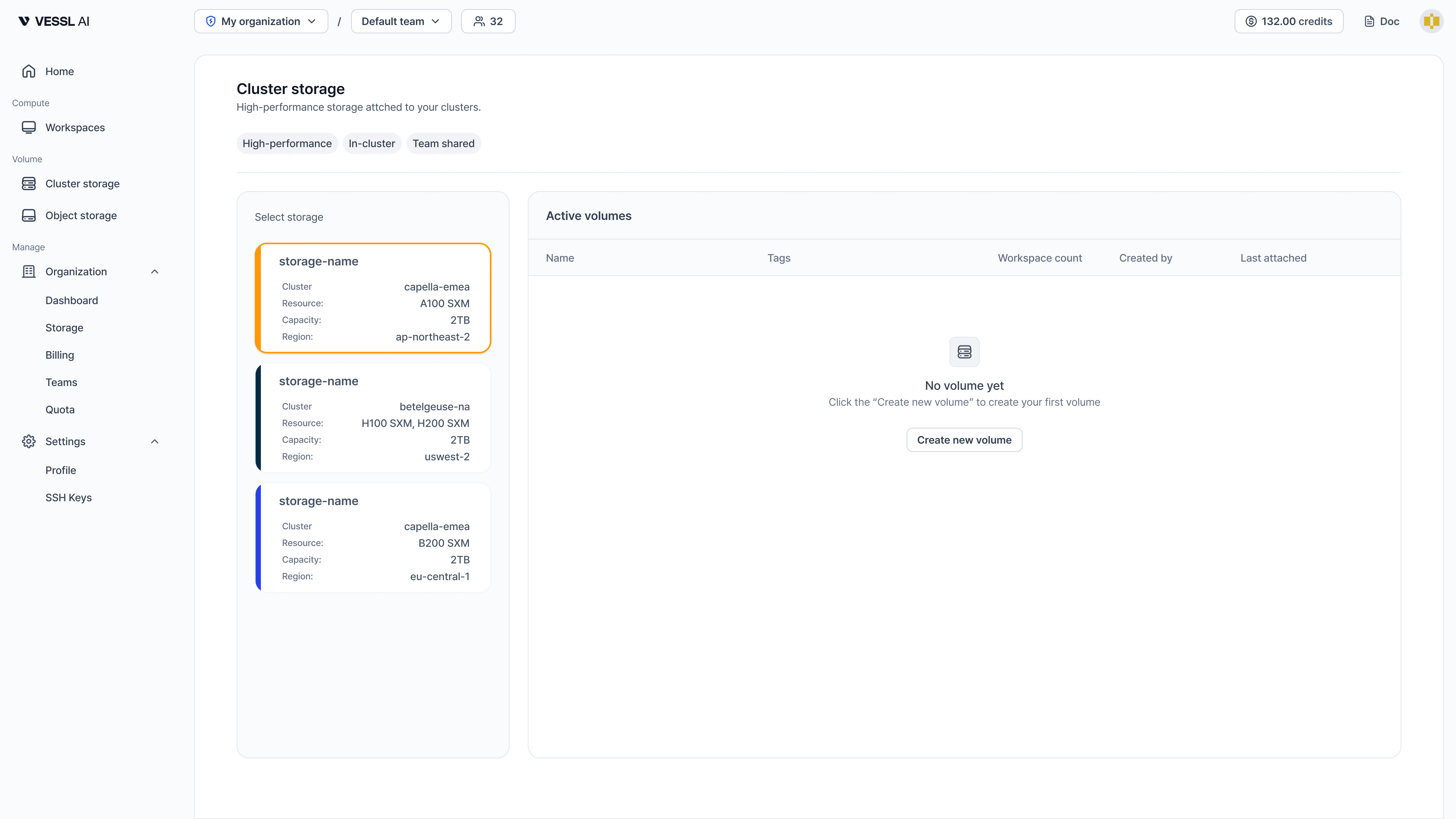
Create a new volume
Click the Object storage tab, then click Create new volume to create a new Object storage volume. You can create Cluster storage volumes the same way.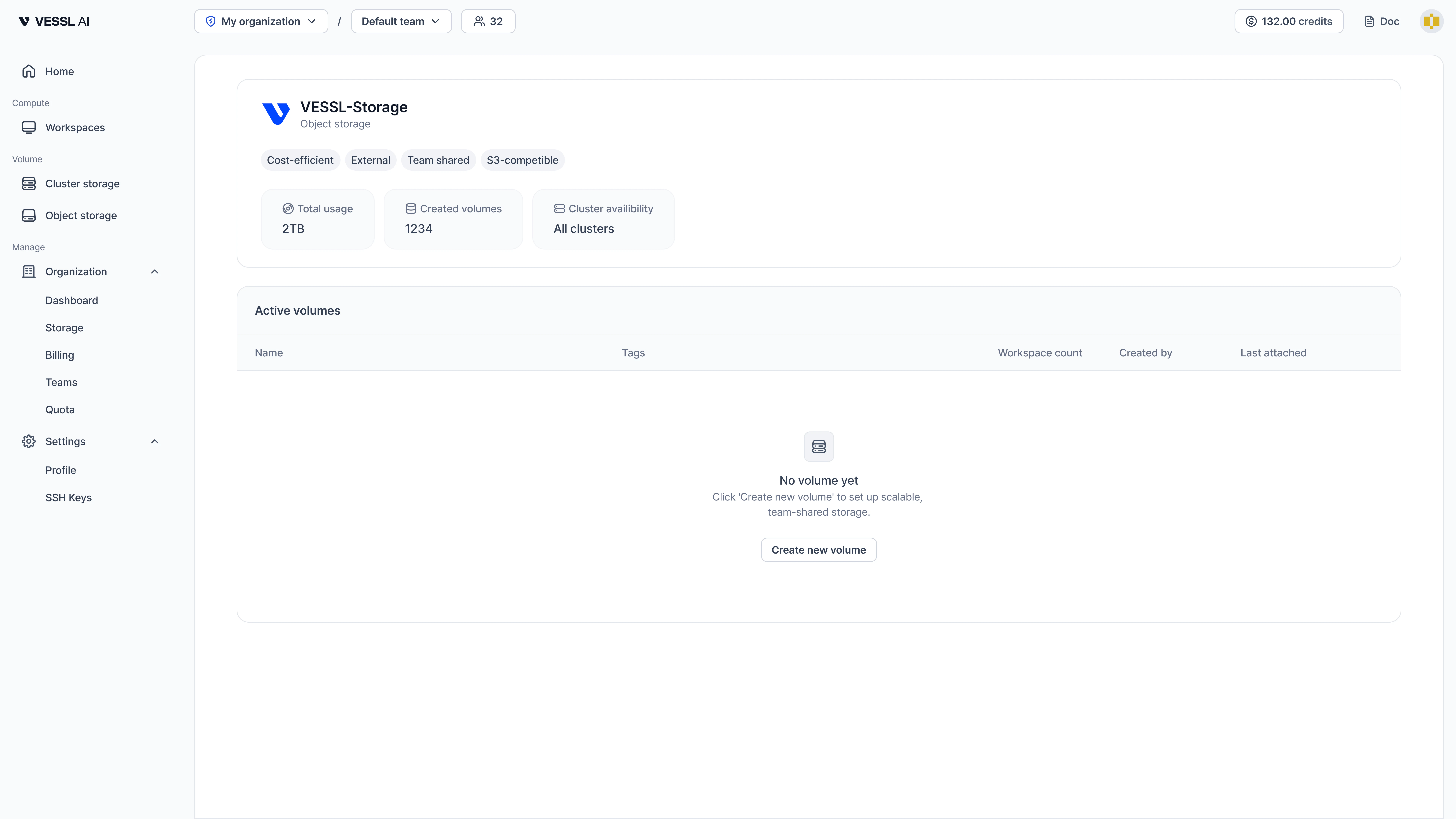
Fill in the form
Enter a Volume name, select one or more teams to attach, and click Create to complete.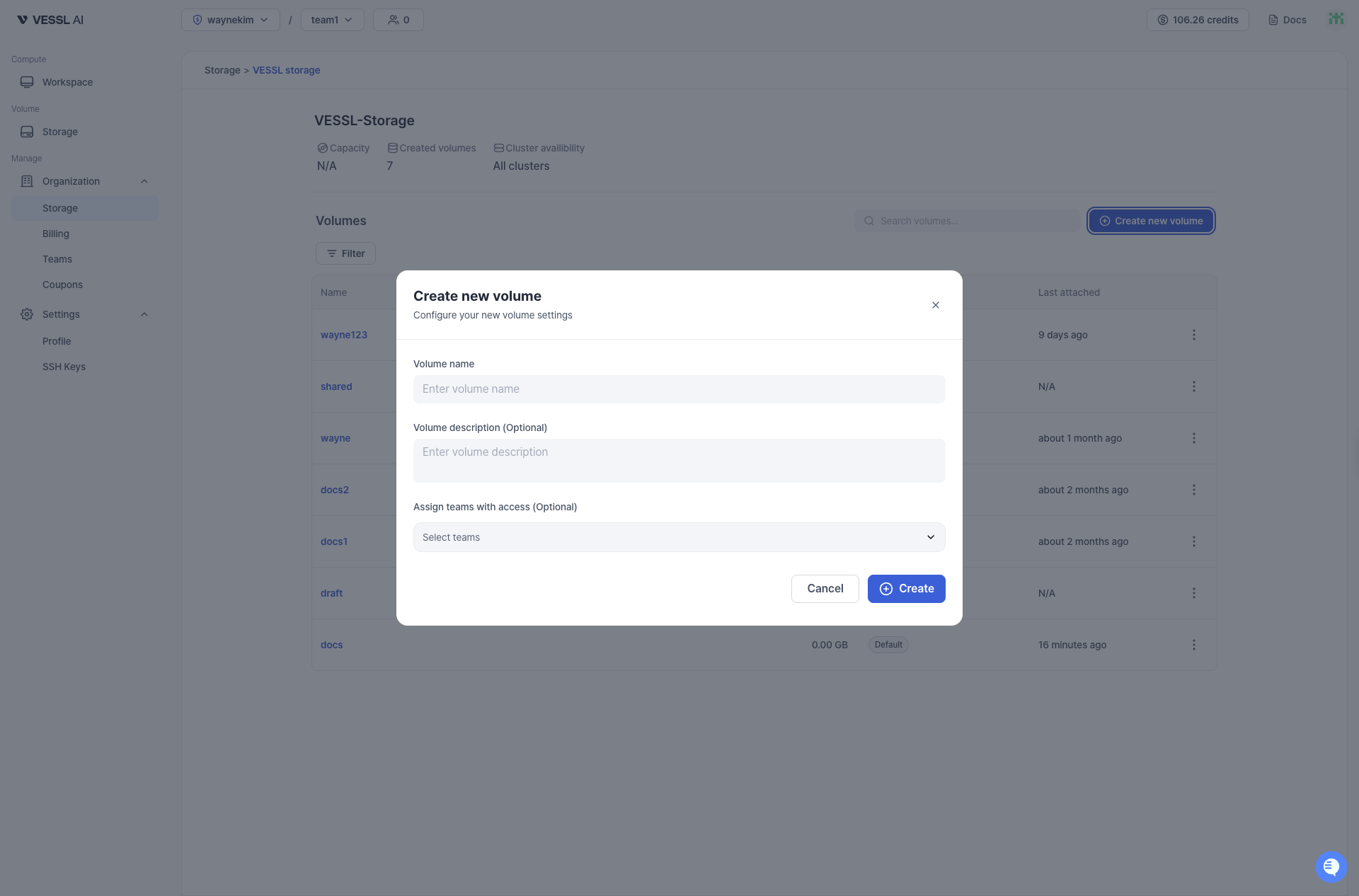
Review volume details
Review volume details in Volume detail (capacity, assignments, created date, and more).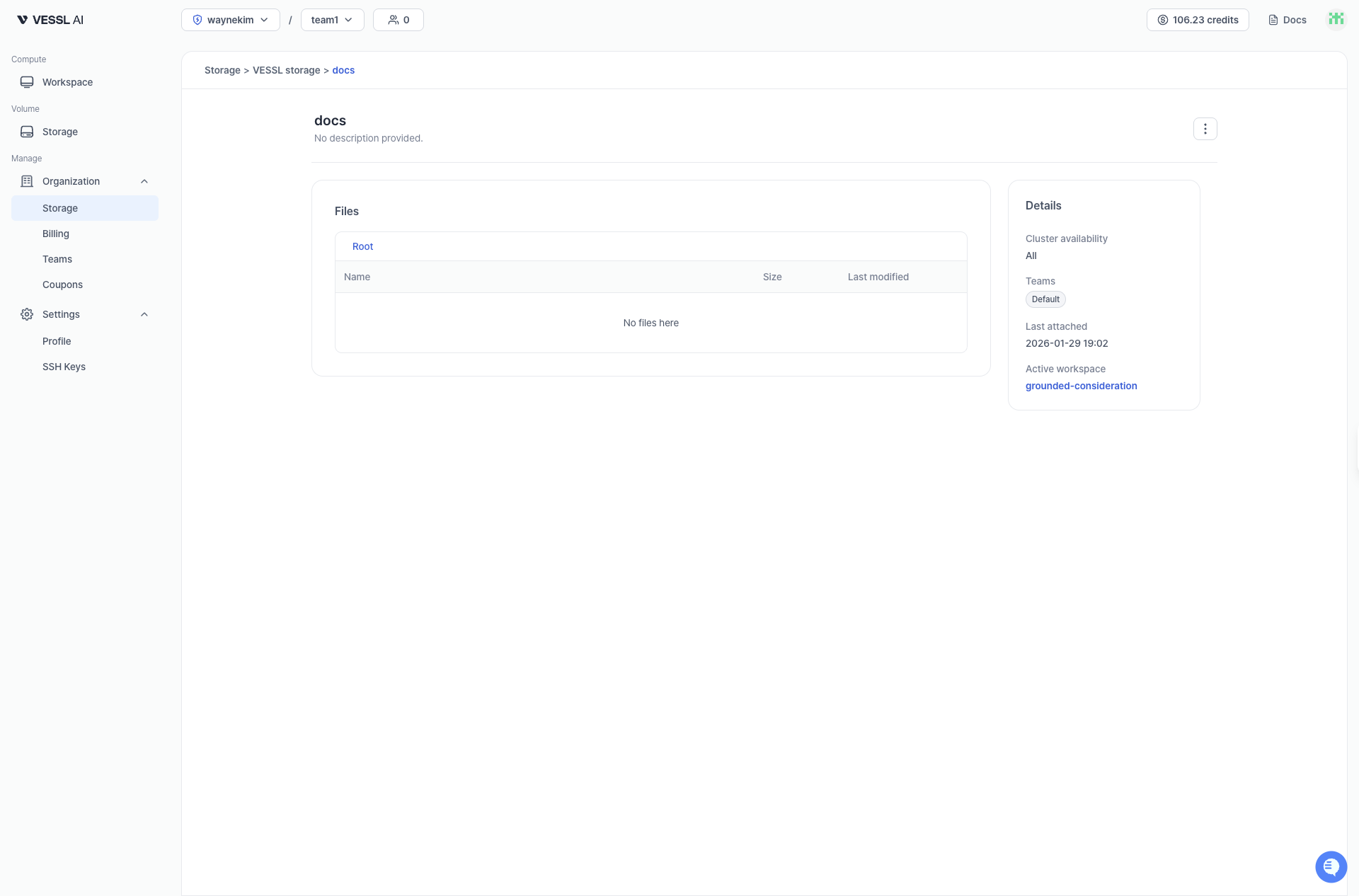
Invite teammates
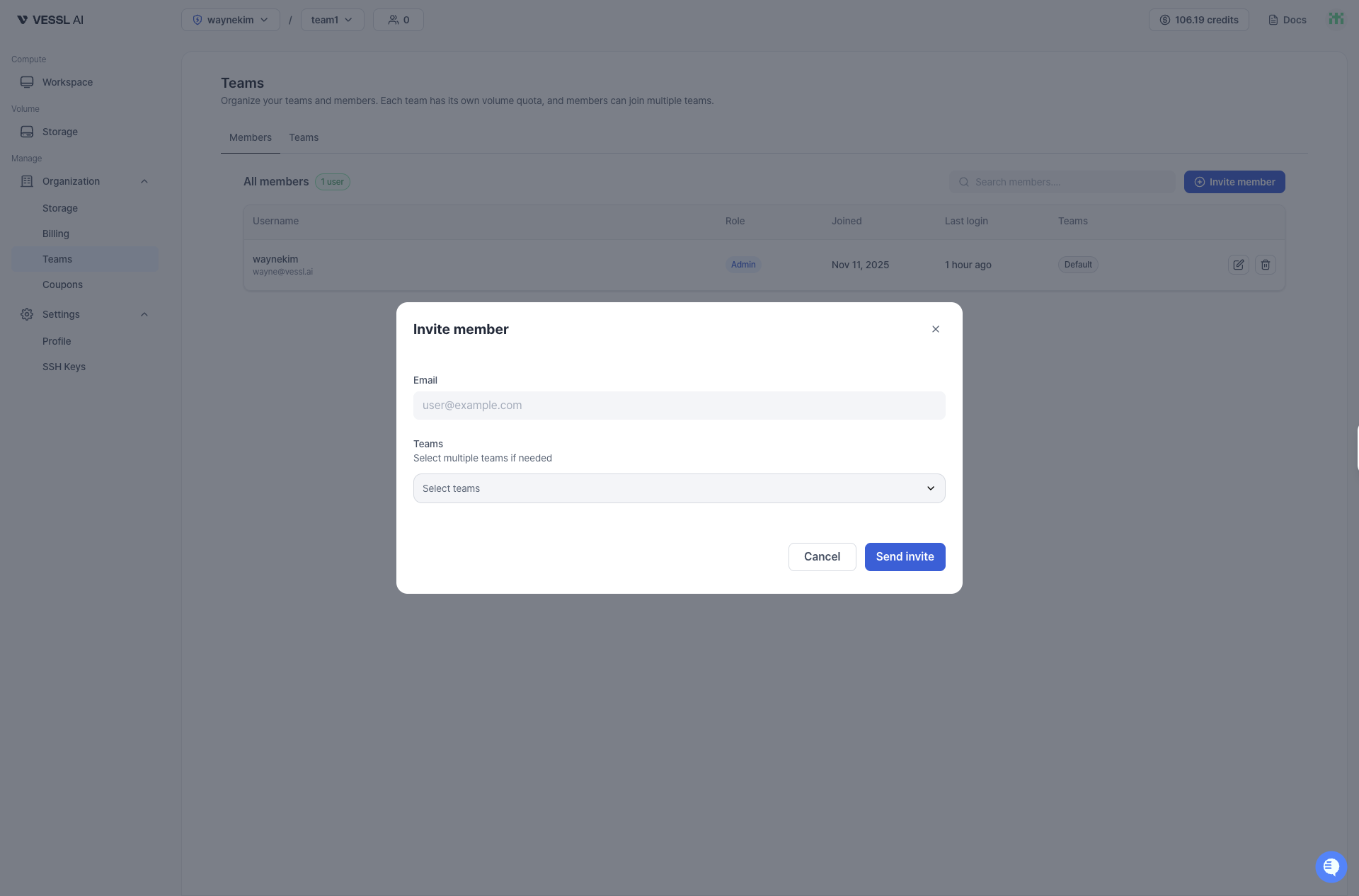
Invite by email. Invited users are in Invited state until they verify their email, then become Active. You must assign at least one Team when inviting. A member can belong to multiple Teams.