Documentation Index
Fetch the complete documentation index at: https://docs.cloud.vessl.ai/llms.txt
Use this file to discover all available pages before exploring further.
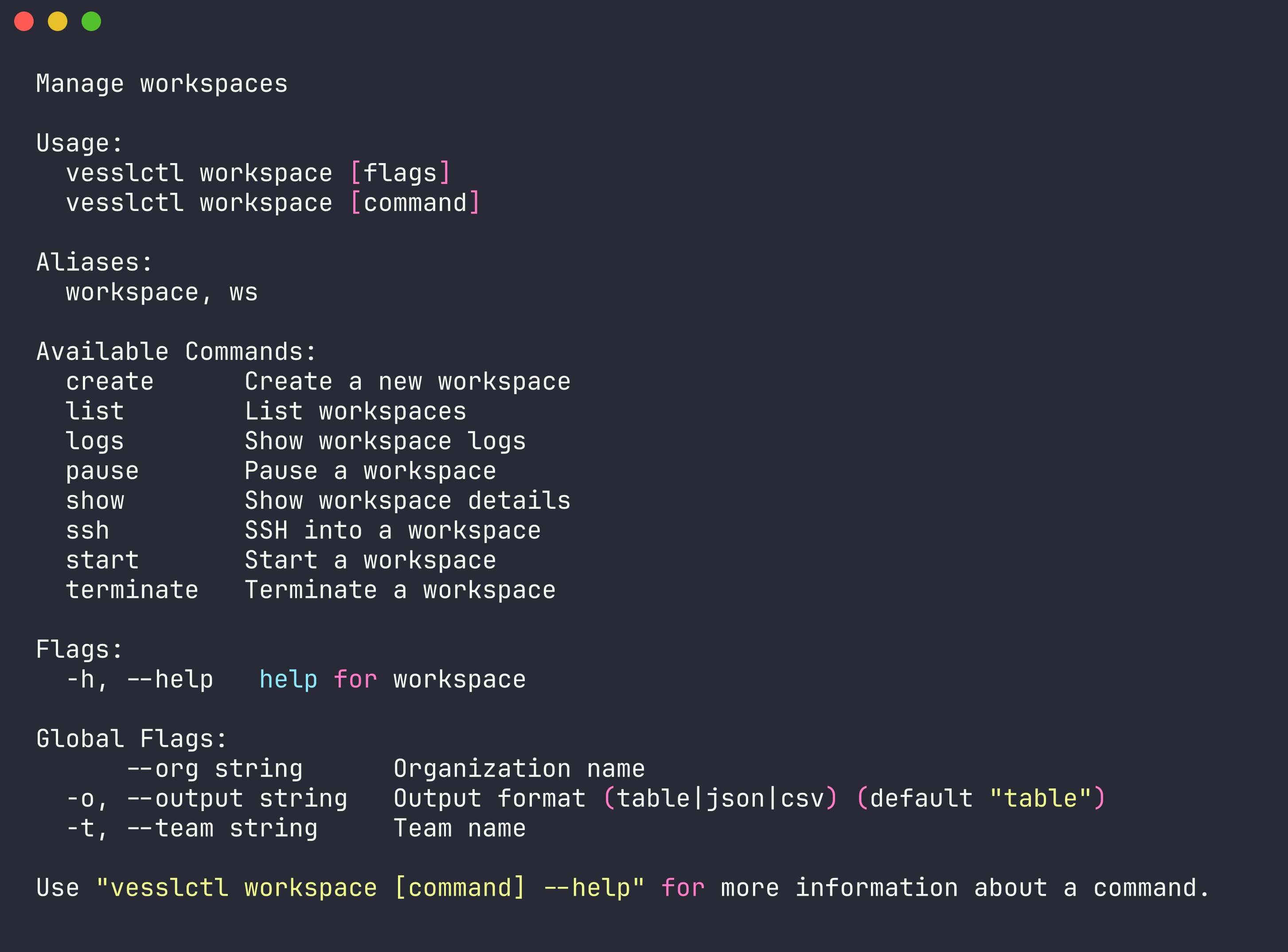
The workspace command (alias: ws) lets you manage interactive development environments on VESSL Cloud. Workspaces provide persistent compute sessions you can pause and resume without losing data.
list
List all workspaces in the current team.
| Flag | Default | Description |
|---|
--all | false | Show all workspaces in the team (not just yours) |
show
Display detailed information about a specific workspace.
vesslctl workspace show <slug>
| Argument | Description |
|---|
slug | Slug of the workspace to inspect |
create
Create a new workspace with a specified cluster, resource spec, and container image.
vesslctl workspace create --name my-workspace --cluster <slug> --resource-spec <slug> --image <image>
| Flag | Required | Description |
|---|
--name | Yes | Name for the workspace |
--cluster | Yes | Cluster slug to run the workspace on |
--resource-spec | Yes | Resource spec slug (GPU type, count, CPU, memory) |
--image | No | Container image to use |
--init-script | No | Shell script to run on workspace startup |
--object-volume | No | Mount an Object storage volume as SLUG:MOUNT_PATH (repeatable) |
--cluster-volume | No | Mount a Cluster storage volume as SLUG:MOUNT_PATH (repeatable) |
--ssh-key | No | SSH key slug to attach (repeatable). Run vesslctl ssh-key list to find slugs. |
--port | No | Additional port as NAME:PORT:PROTOCOL (repeatable). Protocol is http, tcp, or udp. |
vesslctl workspace create \
  --name my-workspace \
  --cluster <cluster-slug> \
  --resource-spec <spec-slug> \
  --image quay.io/vessl-ai/torch:2.9.1-cuda13.0.1-py3.13-slim \
  --ssh-key <ssh-key-slug> \
  --port jupyter:8888:http \
  --port api:8000:tcp
Run vesslctl cluster list and vesslctl resource-spec list to see available clusters and GPU specs. Run vesslctl ssh-key list to see SSH key slugs.
Pricing summary and credit balance. workspace create and workspace start show the resource spec, hourly cost, current credit balance, and estimated remaining hours before launching. Creation is blocked when the balance is zero or negative — run vesslctl billing show to inspect, or top up before retrying.
Run vesslctl inside a running workspace. Every workspace ships with the following environment variables already set, so vesslctl is ready to use from a JupyterLab terminal or SSH session without re-authenticating:
VESSLCTL_ACCESS_TOKEN — a workload-scoped token used as the bearer for API callsVESSLCTL_ORG — the organization that owns the workspaceVESSLCTL_TEAM — the team that owns the workspace
Commands like vesslctl workspace list, vesslctl job create, and vesslctl volume upload work straight away. The workload token has two restrictions worth knowing:
- Scoped to a single team. It can only see and modify resources in the team that owns the workspace. It cannot list other teams or change context with
vesslctl team switch.
- Cannot manage SSH keys. Registering or deleting SSH keys is an account-level action and is rejected for workload tokens. Run
vesslctl ssh-key add from your local machine first, then attach the key at create time with vesslctl workspace create --ssh-key <ssh-key-slug>.
start
Resume a previously paused workspace.
vesslctl workspace start <slug>
| Argument | Description |
|---|
slug | Slug of the workspace to resume |
pause
Pause a running workspace. Billing stops while paused, but all data is preserved.
vesslctl workspace pause <slug>
| Argument | Description |
|---|
slug | Slug of the workspace to pause |
terminate
Permanently delete a workspace and all associated data.
vesslctl workspace terminate <slug>
| Flag | Short | Description |
|---|
--yes | -y | Skip confirmation prompt |
vesslctl workspace terminate my-workspace-abc123 --yes
logs
View logs from a workspace.
vesslctl workspace logs <slug>
| Flag | Short | Default | Description |
|---|
--limit | | 100 | Number of log lines to return |
vesslctl workspace logs my-workspace-abc123 --limit 500
ssh
Open an SSH session into a running workspace.
vesslctl workspace ssh <slug>
| Flag | Short | Description |
|---|
--key | -i | Path to SSH private key file |
vesslctl workspace ssh my-workspace-abc123 -i ~/.ssh/id_rsa
ssh binary against the workspace’s SSH endpoint and authenticates with a registered SSH key — there is no browser OAuth step. Register a key first with vesslctl ssh-key add or in the console under Settings > SSH Keys.
Prefer the browser, JupyterLab, or VS Code? The console Connect tab on each workspace lists every HTTP service (JupyterLab and any custom ports) as clickable URLs and provides a copy-paste SSH config block for VS Code Remote-SSH. See Connect to a workspace for the full set of connection methods.